This page takes examples from the Awesome SVG repository and displays them visually so you can be inspired for your next project. I've also added some caveats for using the effects where appropriate.
SVG paths
Draw a line with stroke-dash-offset
A CSS only technique, demo by Michael Gilbertson.
A common technique that uses SVG's powerful stroke-dash functionality. You can make a stroke dash the same size as the whole line itself, then animate where the stroke begins on the line, drawing or erasing the line.
Draw a line with basic JavaScript
A JavaScript technique. Demo by James Hancock.
Use the SVG line drawing API directly to show line progression.
Reveal an object using a clipPath with <animate attributeName="d">.
Demo by Heather Buchel.
No JS, little CSS required. You could apply this clip path to DOM elements outside of the SVG via a CSS id reference. Configuring the path animation to be exactly how you like it will take either creative tools or some careful planning. Doesn't seem easy to activate on hover either, some eldritch combination of a JS event & recreating the SVG node might do it?
Create a wobbly TextPath
A demo using the above path animation technique, applied instead to a <textPath>. By James Hancock.
SVG filters
Filters create incredibly powerful visual effects, with the caveat that they can display and perform differently across browsers when you experiment with more complex features. Layering several SVG filters will often have a significant impact to the performance of your browser if you attempt to animate the result. From testing on an M1 Macbook, Chrome can render layered SVG filters with little power, but Safari and Firefox use 10 to 20 times more energy.
- A handy user interface to experiment with combining filters (and one just for color effects).
- A blog with a demonstration of all possible filter effects in action
Animated depth of field effect
Demo by Vaughan Curd.
Layering blur filters, revealing then hiding different parts of a scene on hover. Can be achieved without SVG via CSS filter: blur(1px); rules, but you could use other SVG filters here instead.
Animated filter effects
-
Animate your filter values to create a glitch effect
-
doesn't run well on Safari at all (graphical glitches)
-
horrible performance on Firefox when used at full screen, really intensive power usage
-
could make for a nice one-off text wobble effect? Test on Safari!
-
doesn't use as much CPU when run in a smaller effect area
Note that you could animate dynamic lighting using an SVG as well (point light and spotlight variations)
SVG clip text - https://codepen.io/jhancock532/pen/bGRPWPK?editors=1000
Other SVG effects
Use generative design to create a unique background
Demo by Alex Trost.
Alex has created a full tutorial for this effect on frontend.horse.
Overlay a mask onto your SVG to add texture
Demo by Tom Miller
Using JavaScript to build up a grid of SVG shapes. Alex Trost has created a breakdown of this effect on frontend.horse.
Animate the SVG viewbox to move over an image, zoom in and out.
Demo by David Bachmann Johannesson
Using preserveAspectRatio="xMidYMid slice" and simple animations for a responsive background
Tools
- SVG path editor: Free access, allows manual editing of the path string & also drag and drop of the SVG path points.
Other inspiration
- https://a.singlediv.com/ by Lynn Fisher. A lot of what's created on this site doesn't use SVG directly, rather
background-image. However, there are a lot of cool creative implementations using not a lot of code.
If you're wondering how SVG can be used responsively, check out this clever board game journey implementation: https://react.gg/
An SVG is basically just a bunch of divs with transforms applied. Animate their appearance using GSAP and scroll.
AI generated SVG images
For best results, prompt your image generation with SVG, woodcut, graphic design, etc.
For black and white SVG cutouts:
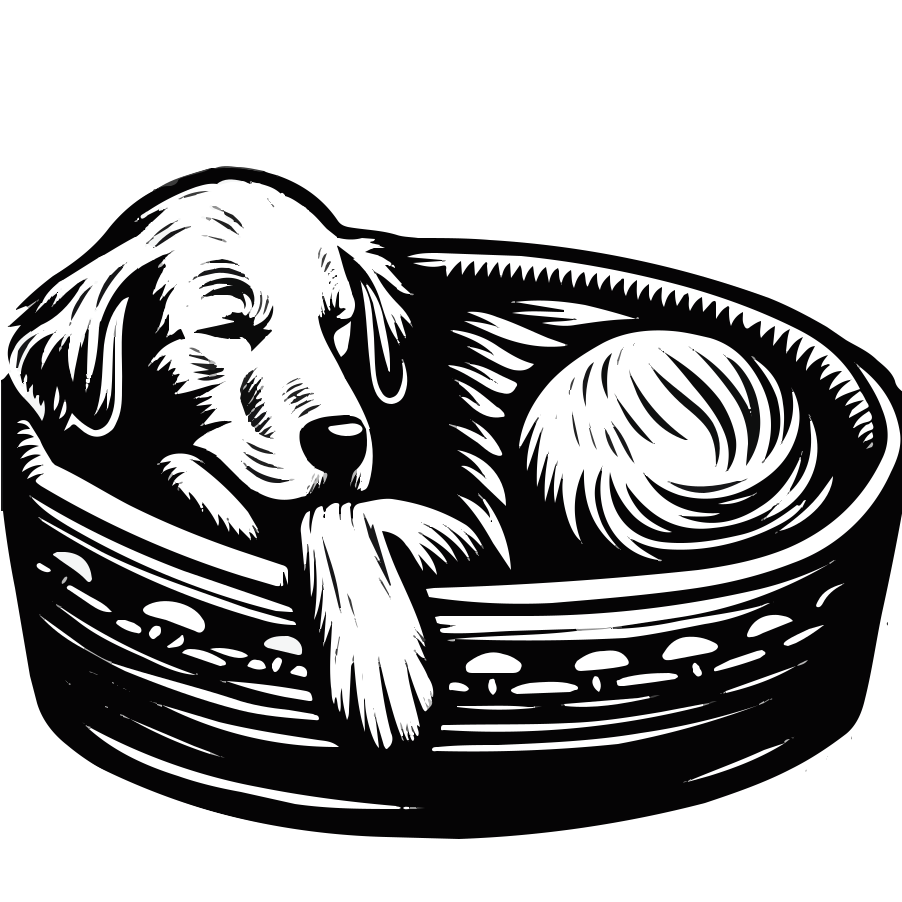
- "A linocut style black and white woodcut image of a medium size golden retriever dog sleeping in a plain cosy dog bed against a white background, no color and large blocky woodcut strokes" (DALLE 3 handled this quite well)
- Consider using Stable Diffusion 1.5 and the print graphic Lora locally - https://civitai.com/models/34903/print-graphic
- Edit the photo with a free photo editor to get rid of any generation mistakes.
- Use Adobe's SVG convertor to make it an SVG.
- Use the Neo color editor to adjust the colors if you are particular about the SVG matching a color scheme.
- Use the SVG OMG optimizer or https://vecta.io/nano to polish the result. Or both!
August 2024 Update
Use Flux to generate the image (can work well even without a Lora)
If you don't need multiple colors, avoid Adobe's SVG converter in favour of https://picsvg.com/